You arrived in Japan, inserted a SIM card or activated an eSIM, but something is not working.
You may see:
- No Service
- 4G / 5G appears, but the internet does not work
- “No SIM” or “SIM not detected”
- Calls work, but mobile data does not
There is no single reason this happens.
The problem may be related to your phone, SIM, settings, network compatibility, or plan.
You do not need to check everything at once.
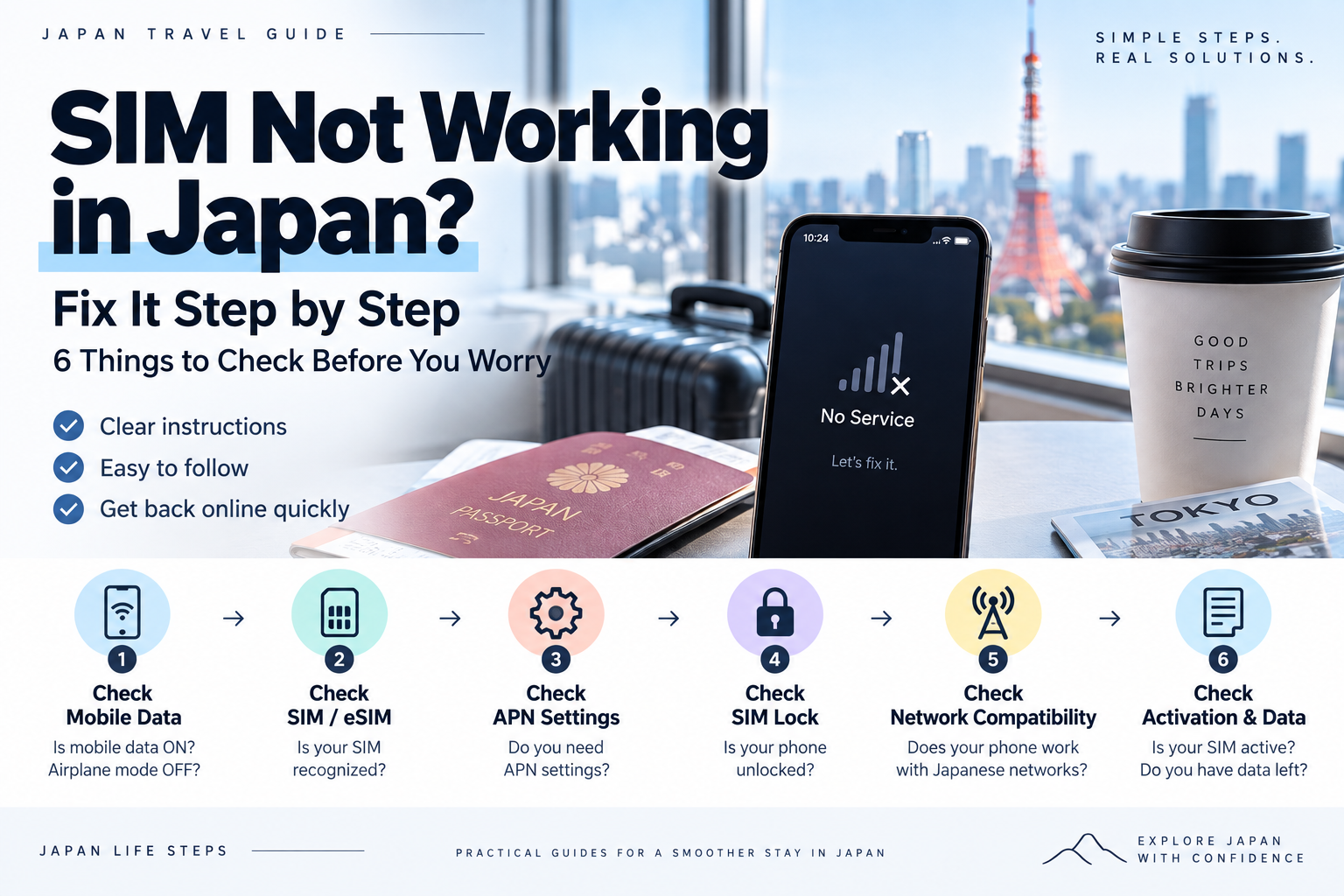
Follow these steps one by one.
- Before You Start: Which Problem Do You Have?
- 1. Check Mobile Data First
- 2. Check Whether Your SIM or eSIM Is Recognized
- Important for eSIM Users
- 3. Check Whether You Need APN Settings
- 4. Check for a SIM Lock
- 5. Check Whether Your Phone Works With Japanese Mobile Networks
- The Easiest Way to Check
- Check the Japanese Network Too
- A Simple Example of Mobile Bands in Japan
- Look for an Official Compatible-Device List
- What If Your Phone Is Not Compatible?
- 6. Check Activation, Data Allowance, and Your Plan
- Still Not Working?
- Quick Checklist
Before You Start: Which Problem Do You Have?
First, check which situation matches your phone.
- No Service
Your phone is not receiving a mobile signal. - 4G / 5G appears, but the internet does not work
Your phone has a signal, but mobile data is not working. - “No SIM” or “SIM not detected” appears
Your SIM or eSIM may not be recognized. - Calls work, but mobile data does not
Your SIM may be active, but your mobile data or APN settings may need to be checked.
You do not need to know the exact cause yet.
Start with Step 1 and work your way down.
1. Check Mobile Data First
Start with the easiest things.
Check:
- Mobile Data is ON
- Airplane Mode is OFF
- Turn Airplane Mode ON, wait a few seconds, then turn it OFF
- Restart your phone
If you are using an iPhone, also check whether a carrier settings update is available.
Go to:
Settings → General → About
If an update message appears, follow the instructions on the screen.
Apple says carrier settings updates can improve mobile network connectivity and performance.
Is the internet working now?
YES → You are done.
NO → Go to Step 2.
2. Check Whether Your SIM or eSIM Is Recognized
Next, check whether your phone can actually see the SIM.
Check:
- Your phone does not show “No SIM”
- A physical SIM is inserted correctly
- Your eSIM is active
- The correct mobile line is turned on
- The correct SIM is selected for Mobile Data
If your phone shows “No SIM,” check the SIM itself before changing APN settings.
If you are using a physical SIM, turn off the phone before carefully reinserting the SIM.
If you are using an eSIM, check that the line has not been turned off.
Important for eSIM Users
Do not delete your eSIM just because the connection is not working.
Apple advises users not to erase an eSIM as a troubleshooting step unless their carrier tells them to do so.
If you delete an eSIM, you may need to contact your carrier and obtain a new eSIM before using the service again.
If you are unsure, check your provider’s official support information first.
Is your SIM recognized now?
YES → Go to Step 3.
NO → Contact your SIM provider.
3. Check Whether You Need APN Settings
Your SIM may be recognized and you may even see 4G or 5G, but the internet still does not work.
In this situation, check your APN settings.
APN is simply a setting that tells your phone how to connect to the internet using your SIM.
Some carriers configure this automatically.
Other SIM providers may require you to enter APN information.
The easiest way to check is to search:
your SIM provider name + APN settings
For example:
ABC SIM APN settings
Open the official website of your SIM provider whenever possible.
The provider may give you information such as:
- APN name
- Username
- Password
- Authentication type
Follow the provider’s instructions exactly.
Do not guess the APN settings.
Incorrect APN information can prevent mobile data from working.
Apple also recommends changing APN settings only when instructed by your carrier.
Is your mobile data working now?
YES → You are done.
NO → Go to Step 4.
4. Check for a SIM Lock
Some phones may still be restricted to the carrier they were originally purchased from.
Check:
- Is your phone SIM-unlocked?
- Can it use SIM cards from other carriers?
A simple Google search can help.
Search:
your phone model + SIM lock
or:
your original carrier name + SIM unlock
Try to use information from the manufacturer or the carrier that originally sold the phone.
If a SIM lock is still active, you may not be able to use a SIM from another carrier.
Is there no SIM lock problem?
YES → Go to Step 5.
NO → Follow the instructions from the carrier that sold your phone.
5. Check Whether Your Phone Works With Japanese Mobile Networks
This sounds technical, but you do not need to understand every Band number.
Phones support different mobile frequencies.
A phone purchased outside Japan may not support all of the frequencies used by the Japanese mobile network you want to use.
If that happens, coverage may be more limited in some places.
You may notice:
- Weak signal in some locations
- Poor reception inside some buildings
- No Service in certain areas
- Unstable mobile data
The Easiest Way to Check
Search:
your phone model + Japan SIM compatibility
For example:
Galaxy S24 Japan SIM compatibility
Pixel 9 Japan SIM compatibility
Try to open an official page from the phone manufacturer or mobile carrier.
Check the Japanese Network Too
Japan’s main mobile networks include:
- NTT Docomo
- au
- SoftBank
- Rakuten Mobile
Many prepaid and low-cost SIM providers use one of these networks.
Search:
your phone model + Docomo compatibility
your phone model + au compatibility
your phone model + SoftBank compatibility
your phone model + Rakuten Mobile compatibility
For example:
Galaxy S24 Docomo compatibility
or:
Pixel 9 au compatibility
A Simple Example of Mobile Bands in Japan
Japanese networks use several different frequency bands.
For example:
- Docomo uses Band 19 (800 MHz) on 4G LTE
- au uses Band 18 / 26 (800 MHz) on 4G LTE
These are only examples.
You do not need to memorize the Band numbers.
What matters is whether your exact phone model supports enough of the frequencies used by the network you want to use.
For example, au notes on its official compatibility pages that devices without Band 18 / 26 support may have a more limited coverage area.
Look for an Official Compatible-Device List
Some SIM providers have pages called:
- Compatible Devices
- Supported Devices
- Device Compatibility
- Tested Devices
Search for your exact phone model.
This is usually easier than comparing individual Band numbers yourself.
What If Your Phone Is Not Compatible?
Do not assume your phone will fail on every Japanese network.
Check another network.
For example:
your phone model + au compatibility
your phone model + SoftBank compatibility
However, this does not mean another network will definitely work.
Before buying another SIM, ask the provider:
“Will this SIM work with my exact phone model?”
Give them the full model number if possible.
If your phone is not compatible with the network you want to use, you may need to choose another SIM provider or use a phone that supports that network.
Is network compatibility not the problem?
YES → Go to Step 6.
NO → Check another provider or a compatible device.
6. Check Activation, Data Allowance, and Your Plan
If your phone and settings look correct, check the SIM account itself.
Check:
- Has the SIM been activated?
- Is the SIM still valid?
- Do you have mobile data remaining?
- Is your plan still active?
- Does your plan include the feature you are trying to use?
Some prepaid SIMs and travel SIMs require an activation process after purchase.
Check your provider’s website or app.
If you have used all of your data, what happens next depends on the SIM.
Your provider may:
- Reduce your internet speed
- Stop mobile data
- Ask you to buy additional data
Check the rules for your specific SIM.
Still Not Working?
If you have checked all six steps and your SIM still does not work, contact your SIM provider.
Before contacting support, prepare:
- Your exact phone model
- The name of your SIM or eSIM plan
- Any error message, such as “No Service” or “No SIM”
- Whether 4G or 5G appears
- Whether phone calls work
- Whether only mobile data is not working
- What you have already tried
This can make it easier for support staff to identify the problem.
Quick Checklist
Check these in order:
1. Mobile Data
↓
2. SIM or eSIM recognition
↓
3. APN settings
↓
4. SIM lock
↓
5. Phone and Japanese network compatibility
↓
6. Activation, data allowance, and plan status
Checking them one at a time can help you narrow down the problem without changing random settings.
If you are unsure about a setting, check the latest official instructions from your SIM provider or phone manufacturer before changing it.
Disclaimer: This article provides general troubleshooting information only. We do not guarantee that these steps will solve every SIM or eSIM problem. Mobile settings, network compatibility, carrier rules, and service conditions may vary depending on your phone model, operating system, carrier, country of purchase, and plan. Before changing any settings, deleting an eSIM, unlocking a device, or purchasing another SIM, check the latest official information from your carrier or device manufacturer. If you are unsure, contact your mobile provider directly.