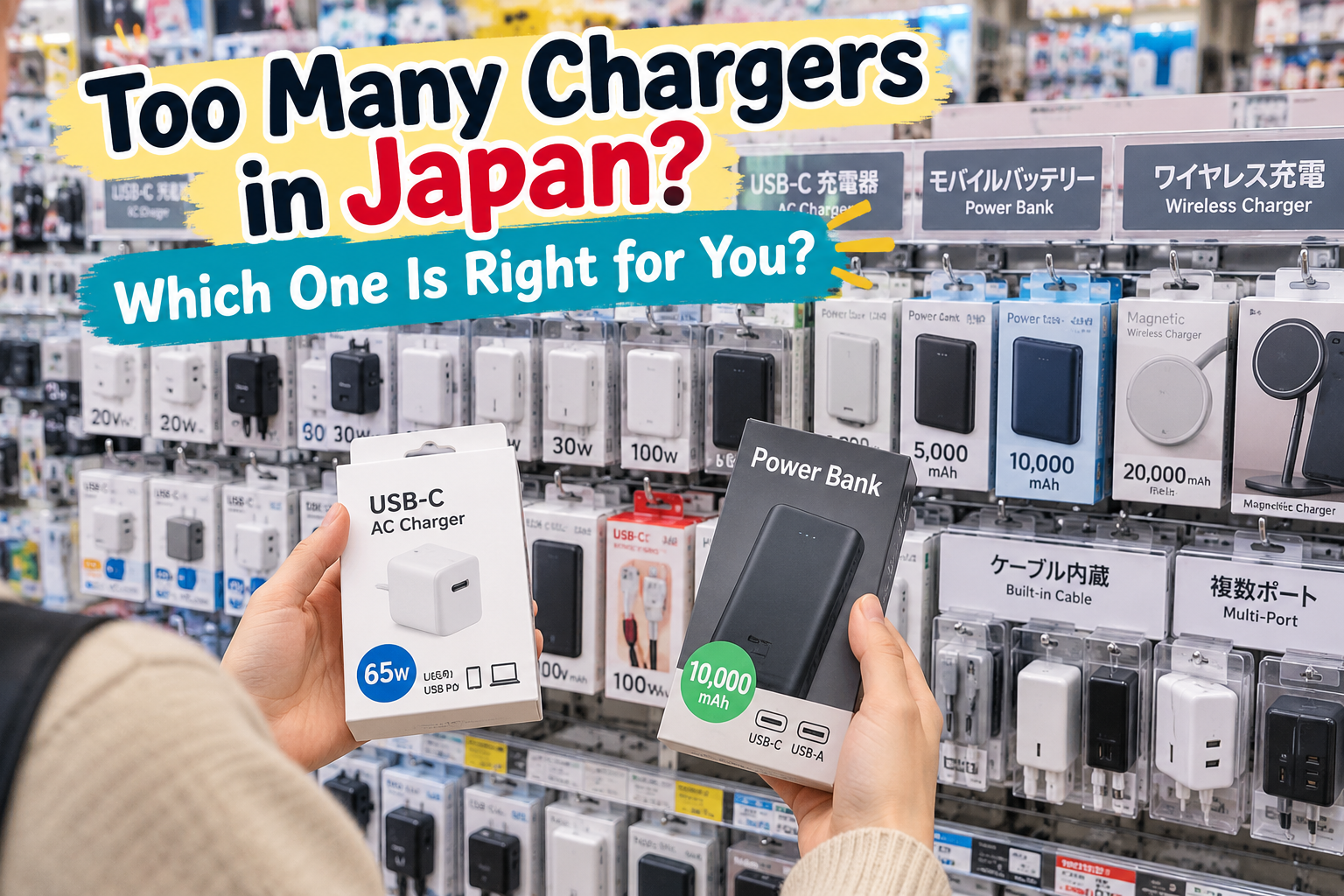
Walk into a Japanese electronics store and the USB-C cable section can be surprisingly confusing.
They all look similar.
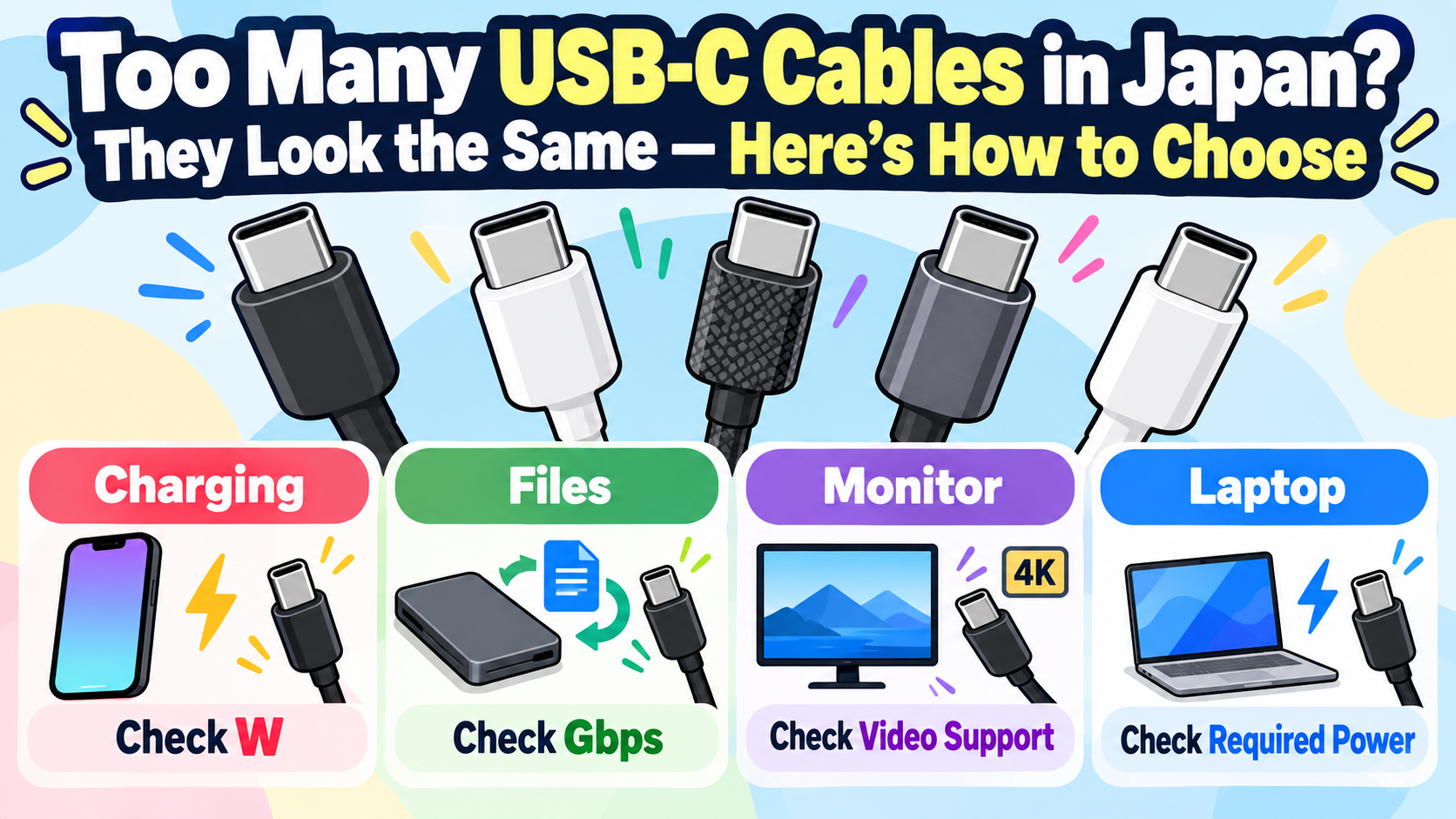
But one cable may be mainly for charging, another may support fast data transfer, and another may work with an external monitor.
So how do you know which one you actually need?
The easiest way is to start with one question:
What do you want the cable to do?
- Quick Answer: What Do You Need?
- USB-C Does Not Mean Every Cable Is the Same
- Charging a Phone or Laptop? Check the Power Rating
- Need to Transfer Photos or Use an SSD?
- Want to Connect a Monitor?
- USB-C to USB-C or USB-A to USB-C?
- What Should You Type in the Search Box?
- Still Confused? Ask Yourself These 3 Questions
- The Bottom Line
- Disclaimer
Quick Answer: What Do You Need?
| What you want to do | What to check |
|---|---|
| Charge a phone | Connector type and power rating |
| Charge a laptop | Required wattage |
| Transfer photos or videos | Data transfer speed |
| Use an external SSD | Data transfer speed |
| Connect to a monitor | Video output support |
| Use an older USB charger | USB-A to USB-C |
You do not need the most expensive cable.
You need the cable that supports what you actually want to do.
USB-C Does Not Mean Every Cable Is the Same
USB-C describes the connector.
It does not tell you everything the cable can do.
Two USB-C cables can look almost identical but have very different capabilities.
For example, one cable may:
- charge a phone
- support high-power laptop charging
- transfer data at higher speeds
- support video output
Another cable may only do some of these things.
That is why choosing a USB-C cable based only on its shape can be confusing.
For current USB-IF-certified USB-C to USB-C cables, you may see power ratings such as 60W or 240W.
Official information:
USB-IF — USB-C Cables and Connectors
Charging a Phone or Laptop? Check the Power Rating
If you only want to charge a phone, you may not need a high-power cable.
A laptop can be different.
Some laptops require much more power than a phone, so check the charging requirements for your device.
For USB-C to USB-C cables using the current USB-IF certification labeling:
- 60W cables are available
- 240W cables are available
If your device requires more than 60W, look for a cable that can handle the power your device needs.
Remember that charging depends on the combination of:
device + charger + cable
A high-power cable alone will not make a device charge faster than the device or charger supports.
Need to Transfer Photos or Use an SSD?
A USB-C cable that charges your phone does not automatically provide fast data transfer.
If you want to:
- transfer lots of photos or videos
- use an external SSD
- move large files between devices
check the data transfer speed on the package or product specifications.
You may see terms such as:
5Gbps, 10Gbps, 20Gbps, or higher
depending on the cable and standard.
The important point is simple:
Charging speed and data transfer speed are not the same thing.
Apple, for example, explains that its USB-C charging cable can charge devices but is limited to USB 2 data speeds and does not support video output, while compatible Thunderbolt cables can support much faster data transfer and video.
Apple — About the Thunderbolt 3 (USB-C) Cable
Want to Connect a Monitor?
This is another area where USB-C can be confusing.
A cable having USB-C connectors does not automatically mean it can send video to a monitor.
If you want to connect a laptop or tablet to a display, check whether the cable supports video output.
But there is one more thing to check:
Your laptop or tablet’s USB-C port must also support the required video output.
So even a video-capable cable will not guarantee that a monitor works if the device’s USB-C port does not support video.
USB-C to USB-C or USB-A to USB-C?
Look at both ends of the connection.
If your charger has a USB-C port, you may need:
USB-C to USB-C
If you are using an older charger with the larger rectangular USB-A port, you may need:
USB-A to USB-C
Do not check only the connector on your phone.
Check what is on the other end too.
What Should You Type in the Search Box?
If you are searching online or using the search function on a Japanese electronics store website, add the feature you actually need.
Just charging a phone
USB-C 60W charging cable
Higher-power laptop charging
USB-C 240W charging cable
Fast photo or video transfer
USB-C 10Gbps data cable
External SSD
USB-C SSD 10Gbps cable
Monitor connection
USB-C video output cable
Using an older USB-A charger
USB-A to USB-C cable
These are search examples, not guarantees of compatibility.
Always check the specifications of your device before buying.
Still Confused? Ask Yourself These 3 Questions
1. What am I connecting?
A phone, tablet, laptop, SSD, or monitor?
2. What do I want the cable to do?
Charge, transfer data, or send video?
3. What does my device support?
Check the manufacturer’s specifications, especially for laptop charging and video output.
Once you know those three things, the wall of USB-C cables becomes much easier to understand.
The Bottom Line
USB-C cables may look the same, but they do not necessarily do the same things.
You do not need to memorize every USB standard.
Just remember:
Charging → check power
Files → check data speed
Monitor → check video support
And if you are unsure, check the specifications for both your device and the cable before buying.
Disclaimer
This article provides general information to help travelers understand USB-C cable choices in Japan.
Charging performance, data transfer speed, video output, and compatibility depend on the specific device, charger, cable, port, and supported standards.
Search terms shown in this article are examples only and do not guarantee compatibility with a particular device.
Product specifications and USB standards may change. Before purchasing a cable, check the latest specifications from your device manufacturer and the cable manufacturer.