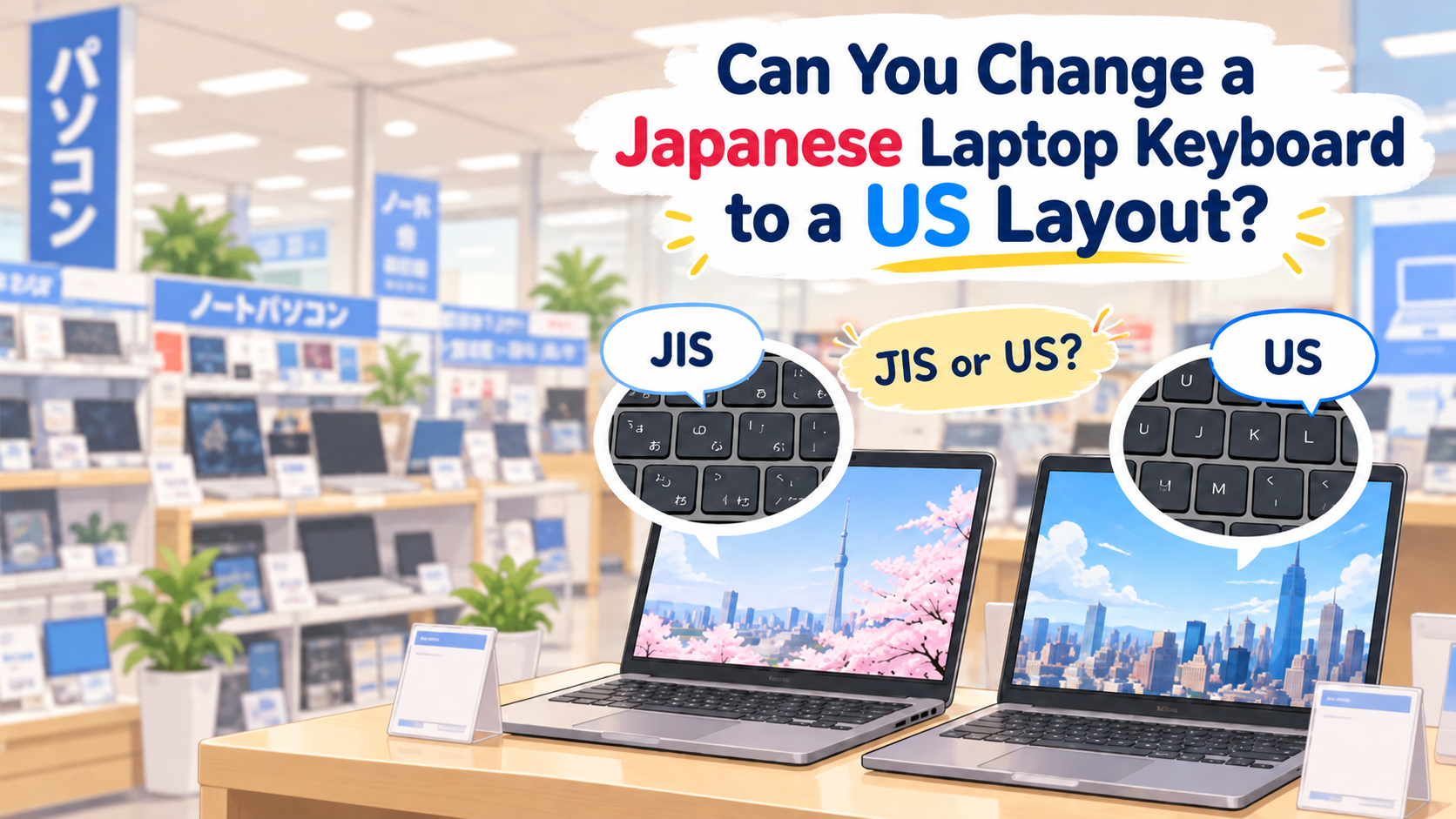
Buying a used laptop in Japan can be a great way to save money.
But there is one thing that surprises some international buyers:
the keyboard may be Japanese JIS rather than a US layout.
Can you still use it like a US keyboard?
In many cases, yes.
But the real question is:
What are you willing to compromise on — key labels, typing comfort, portability, cost, or hardware modification?
Here are the main options.
- Quick Answer
- What Is Different Between JIS and US Keyboards?
- When Does a Japanese Keyboard Become Annoying?
- Option 1: Change Windows to a US Keyboard Layout
- What Happens If You Use a US Layout on a JIS Keyboard?
- What Does Not Change?
- What Are You Actually Compromising On?
- Option 2: Use an External US Keyboard
- What About Surface and Other Detachable Keyboards?
- Option 3: Replace the Built-In Keyboard
- What Should You Check Before Buying a Replacement Keyboard?
- Can You Just Change the Keycaps?
- Can You Still Type Japanese on a US Keyboard?
- What About MacBooks?
- Before Buying a Used Laptop in Japan
- Which Option Should You Choose?
- Quick Tip
- Bottom Line
- Disclaimer
Quick Answer
If you buy a Japanese laptop with a JIS keyboard, you may have four practical choices:
- Keep the JIS keyboard and use it normally
- Change Windows to a US keyboard layout
- Use an external or detachable US keyboard
- Replace the internal keyboard if a compatible US version exists
The easiest option depends on the computer and how much the keyboard layout bothers you.
What Is Different Between JIS and US Keyboards?
The letters A–Z are mostly in the familiar QWERTY positions.
So normal English typing is usually not the biggest problem.
The main differences are:
- punctuation and symbol positions
- Enter key shape
- space bar size
- additional Japanese input keys
- printed key labels
- the number and arrangement of some physical keys
For example, on a typical US layout:
Shift + 2 → @
On a typical Japanese JIS layout:
Shift + 2 → “
Other symbols such as:
@"':;[]\~
may also be in different positions.
This is often where US keyboard users notice the difference.
When Does a Japanese Keyboard Become Annoying?
For simple English sentences, you may barely notice the difference.
The inconvenience becomes more obvious when typing symbols.
For example:
- email addresses using
@ - passwords containing symbols
- Wi-Fi passwords
- programming
- coding brackets and backslashes
- URLs
- punctuation-heavy writing
If you already know the US layout by touch, the difference may be manageable.
If you frequently look at the printed keys while typing, it can be more confusing.
Option 1: Change Windows to a US Keyboard Layout
Windows allows you to add and switch keyboard layouts.
In Windows 11, check:
Settings → Time & language → Language & region
You can add an English (United States) keyboard layout and switch between installed layouts.
You can also cycle through installed keyboard layouts with:
Windows key + Space
Microsoft Support – Manage Language and Keyboard Layout Settings in Windows
Microsoft also distinguishes between Japanese 106/109-key keyboards and English 101/102-key keyboards in its Japanese IME documentation.
Microsoft Support – Microsoft Japanese IME
What Happens If You Use a US Layout on a JIS Keyboard?
This is the important part.
The physical keyboard stays Japanese JIS.
Windows changes how it interprets the keys.
So you may effectively be typing according to the US layout while looking at Japanese key labels.
That means some printed symbols may no longer match what appears on the screen.
In simple terms:
The software can behave like a US layout.
The physical keyboard still looks and feels like a JIS keyboard.
If you know the US layout by memory, you may simply ignore some of the printed symbols.
What Does Not Change?
Changing the Windows layout does not physically change:
- the Enter key
- the space bar
- the Japanese-specific keys
- the key shapes
- the printed symbols
- the physical position of the switches
So it is not the same as installing a real US keyboard.
What Are You Actually Compromising On?
This is probably the easiest way to decide.
Cheapest option
Keep the JIS keyboard and use a US software layout.
What you compromise on:
The printed symbols may not match what you type.
Most comfortable at a desk
Use an external US keyboard.
What you compromise on:
You need another keyboard on your desk or in your bag.
Best for portability
Use the built-in JIS keyboard.
What you compromise on:
You may need to learn some different symbol positions.
True built-in US keyboard
Replace the physical keyboard if your exact laptop supports it.
What you compromise on:
Money, repair work and possible parts availability.
There is no single best answer.
It depends on which inconvenience matters least to you.
Option 2: Use an External US Keyboard
For many users, this is the easiest solution.
A standard US keyboard can usually be connected by:
- USB
- Bluetooth
- wireless receiver
You get a real physical US layout without opening the laptop.
This can be especially practical if you mainly use the computer:
- at home
- at a desk
- in an office
- with an external monitor
For a desktop-style setup, this may solve the problem completely.
What About Surface and Other Detachable Keyboards?
Devices with removable keyboards can be much easier to deal with.
For example, some Microsoft Surface models use a detachable keyboard or Type Cover.
If a compatible US-layout keyboard is available for your exact Surface model, you may be able to replace the keyboard accessory without opening the computer.
However, not every Surface keyboard fits every Surface.
Microsoft currently separates compatibility between different Surface families and generations.
For example:
- Surface Pro 8 and later use newer Surface Pro keyboards
- Surface Pro 7+ and earlier use older Type Cover families
- Surface Go uses its own Type Cover family
- Surface Pro 12-inch models use another compatible keyboard family
Always check the exact model before buying a replacement keyboard.
Microsoft Support – Surface Pro Keyboards and Type Covers
A simple rule is:
Detachable keyboard device → may be easier
Built-in laptop keyboard → check the exact model first
Option 3: Replace the Built-In Keyboard
This is where things become model-specific.
Some laptops have a keyboard that can be replaced as a separate component.
Other laptops may have the keyboard integrated into a larger:
- palmrest
- top cover
- upper-case assembly
This means two laptops from the same manufacturer may be completely different to repair.
Do not assume:
“All Lenovo laptops can be converted.”
or:
“All Dell laptops use the same type of keyboard.”
The exact model matters.
What Should You Check Before Buying a Replacement Keyboard?
Check:
- exact model number
- product number
- machine type
- service tag or serial number, where applicable
- official parts list
- official service manual
- keyboard connector
- backlight compatibility
- top-cover or palmrest design
- whether a US-layout part actually exists
Do not buy a keyboard simply because it looks similar in a photo.
Can You Just Change the Keycaps?
Usually, changing the keycaps alone does not create a true US keyboard.
JIS and US keyboards may have different:
- key shapes
- Enter keys
- space bars
- switch positions
- additional keys
Keyboard stickers may help if you want the printed symbols to match a US software layout.
But they are a visual aid, not a physical conversion.
Can You Still Type Japanese on a US Keyboard?
Yes.
A physical Japanese keyboard is not required just to type Japanese.
Japanese input can be handled by the operating system and IME.
Microsoft’s Japanese IME supports both Japanese 106/109-key keyboards and English 101/102-key keyboards.
Microsoft Support – Microsoft Japanese IME
So someone who mainly types English can use a US keyboard and still type Japanese when needed.
What About MacBooks?
Apple also distinguishes between different physical keyboard types:
- ANSI
- JIS
- ISO
ANSI is the standard layout widely used in North America.
JIS is the Japanese keyboard type.
Changing the input source in macOS does not physically turn a JIS keyboard into an ANSI keyboard.
Apple Support – Specify a Keyboard Type on Mac
Physical keyboard replacement on a Mac should be checked for the exact model before purchasing parts or arranging repair.
Before Buying a Used Laptop in Japan
If you have not bought the computer yet, check the keyboard before paying.
Look at the photos carefully.
Japanese listings may use terms such as:
JIS配列
日本語キーボード
US配列
USキーボード
英語キーボード
英語配列
If a real physical US keyboard is important to you, buying a laptop that already has one may be much easier than changing it later.
For more things to check when buying a second-hand computer in Japan, see:
Buying a Used Laptop in Japan? 10 Things to Check Before You Buy
Which Option Should You Choose?
| Your priority | Possible choice |
|---|---|
| Lowest cost | Keep JIS and try a US software layout |
| Correct US key labels | External or physical US keyboard |
| Desk use | External US keyboard |
| Easy hardware change | Compatible detachable keyboard |
| Maximum portability | Keep the built-in keyboard |
| True built-in US layout | Model-specific internal replacement |
Quick Tip
Before spending money, try the easiest solution first.
1. Use the Japanese keyboard normally
If it does not bother you, you may not need to change anything.
2. Try the US keyboard layout in Windows
If you know the US layout by memory, you may be comfortable ignoring the JIS symbol labels.
3. Try an external US keyboard
This gives you a real US layout without modifying the laptop.
4. Check detachable keyboard options
For devices such as compatible Surface models, replacing the keyboard accessory may be relatively simple.
5. Consider internal replacement last
Only after confirming that the exact model has a compatible US-layout part.
Bottom Line
A Japanese used laptop does not automatically become difficult to use just because it has a JIS keyboard.
The real question is:
What are you willing to compromise on?
If you want the lowest price, you may be happy to ignore the printed symbols and use a US software layout.
If you want the familiar physical feel of a US keyboard, an external keyboard may be easier.
If you have a detachable-keyboard device, a compatible US keyboard may be a convenient solution.
If you want to physically convert a traditional laptop, the answer depends on the exact model and available parts.
So before rejecting a good used laptop simply because it has a Japanese keyboard, consider which compromise matters least to you.
Disclaimer
This article provides general information and was checked in 2026. Keyboard layouts, operating-system settings, accessory compatibility, repair procedures and replacement-part availability can vary by manufacturer, model, region and production version.
Changing a software keyboard layout does not guarantee that the physical key labels or key positions will match a US keyboard.
Detachable keyboards, including Microsoft Surface keyboards, are not universally interchangeable. Always confirm compatibility with the exact device model before purchasing an accessory.
Physical keyboard replacement may require disassembly and may involve a larger palmrest or top-cover assembly on some models. Before opening a computer or purchasing replacement parts, check the manufacturer’s official documentation for the exact model. If you are unsure, consider using an external keyboard or consulting the manufacturer or a qualified repair service.
Product specifications, Windows and macOS menus, supported accessories and replacement parts may change over time.